HWID Guide · 9 min read · 2026-09-29
Discover What an HWID Spoofer Does for Safety
A plain-English explanation of hardware identifiers, temporary and persistent changes, reset behavior, compatibility, and realistic limitations.
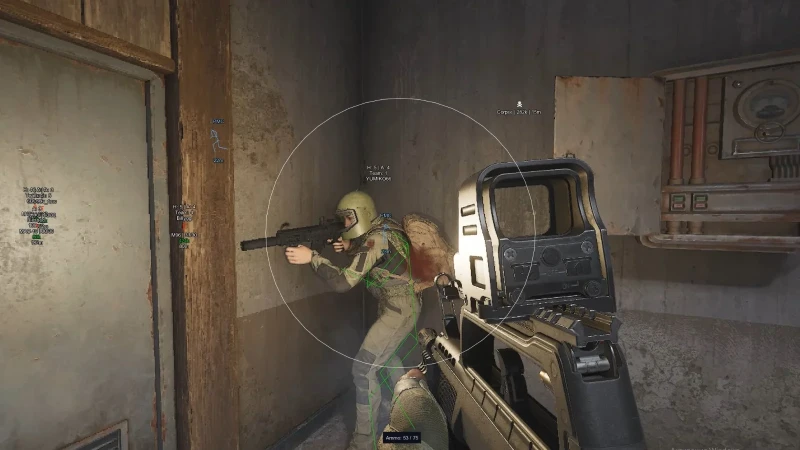
What an HWID spoofer does
What an HWID spoofer does is change or mask selected hardware identifiers that software can read from a Windows PC. The exact identifiers and method vary by tool, so “HWID” should not be treated as one universal number.
Hardware-related identifiers may be associated with components such as storage devices, a motherboard, network hardware, or operating-system data. Applications can combine several signals rather than relying on a single value.
A spoofer changes the identifier layer it supports. It does not automatically change an account, IP address, gameplay history, payment record, or every other signal a service may use.
Temporary and persistent changes
A temporary spoofer generally applies changes for the current Windows session or until the system restarts. This approach is easier to reverse because the original values return after the tool unloads or the PC reboots.
A persistent method may keep changes across restarts. That creates more setup and recovery concerns, so users should understand exactly which values change and how the original state is restored before proceeding.
The words temporary and permanent are not enough by themselves. Check whether the tool provides a backup, reset process, compatibility list, and clear explanation of what survives a restart.
What a spoofer does not protect
A hardware-identifier change does not make every program or account automatically safe. Services may also evaluate account data, network information, software behavior, or other device signals.
It also does not prove that another loader is compatible with the current game or anti-cheat build. Product status and HWID handling are separate checks and should be evaluated separately.
For the broader raid software setup, read the Arena Breakout configuration guide instead of treating a spoofer as a replacement for current compatibility information.
Compatibility and system checks
Confirm the supported Windows edition and build before using any system-level tool. Storage configuration, virtualization features, security software, and driver changes can affect whether a method works as described.
Create a normal system restore point and keep important files backed up before making persistent system changes. A documented reset route is more useful than a vague claim that every identifier will return automatically.
For players comparing the related PC package, arena breakout cheats lists current features and the support route. Confirm whether HWID functionality is actually included rather than assuming it is part of every menu.
How to evaluate a spoofer
Look for a specific list of supported identifiers, Windows versions, required restarts, and reset steps. The documentation should also explain whether the method is temporary, persistent, or selectable.
Check whether the tool reports its current state and whether original values can be verified after reset. Support should be able to explain a failed launch without asking users to repeat system changes blindly.
Avoid comparing tools only by the number of identifiers they claim to modify. Clear scope, recovery steps, compatibility notes, and active support are stronger signs of practical value.
A simple pre-use checklist
Record the current Windows version, read the supported-build list, back up important files, and understand the reset process. Confirm whether a restart is required before and after use.
Keep account status, product compatibility, and hardware identifiers as separate topics. A change in one area does not confirm anything about the others.
If the documentation does not identify what changes or how to restore it, pause and ask support for those details. A system-level tool should have a clear recovery path.
Ready for arena breakout cheats?
Check live ACE status, then buy ESP, aimbot, and recoil control for Arena Breakout Infinite on arenabreakoutcheats.net. Need help? Read support or player reviews. Own the game via the official site.
Community replies
Discussion prompts based on common player questions.
DeviceCheck
Windows setup · Sep 29, 2026
The temporary-versus-persistent distinction clears up a lot. I would want to know exactly what returns after restart before testing anything system-level.
BootSequence
Sep 29, 2026
Is there a reliable way to confirm the original identifiers were restored? A documented before-and-after check seems more useful than a simple reset button.
StorageLane
PC builder · Sep 30, 2026
Good point that HWID is not one number. Tools should list which components they support instead of just saying they change everything.
CleanRestart
Sep 30, 2026
I keep compatibility and device changes as separate checks too. A current game status does not explain what a system tool changes or whether it can be reversed.
Frequently asked questions
Is HWID one permanent number?
No. HWID is a general term for hardware-related identifiers, and software may read or combine several values. The exact set depends on the application and system.
What is the difference between temporary and persistent spoofing?
Temporary changes normally end after unloading the tool or restarting Windows. Persistent changes may survive restarts and therefore need clearer backup, reset, and recovery instructions.
Does an HWID spoofer change an account or IP address?
Not automatically. Hardware identifiers, account data, network addresses, and software behavior are separate signals unless a specific tool clearly says it handles another category.
Can a spoofer guarantee safety?
No system-level tool can guarantee how every service will evaluate a device. Confirm its exact scope, current compatibility, reset process, and support before use.
What should I check before using one?
Check the supported Windows build, affected identifiers, restart requirements, temporary or persistent behavior, and reset steps. Back up important data and make sure a recovery path is documented.